Physical Address
304 North Cardinal St.
Dorchester Center, MA 02124
Physical Address
304 North Cardinal St.
Dorchester Center, MA 02124
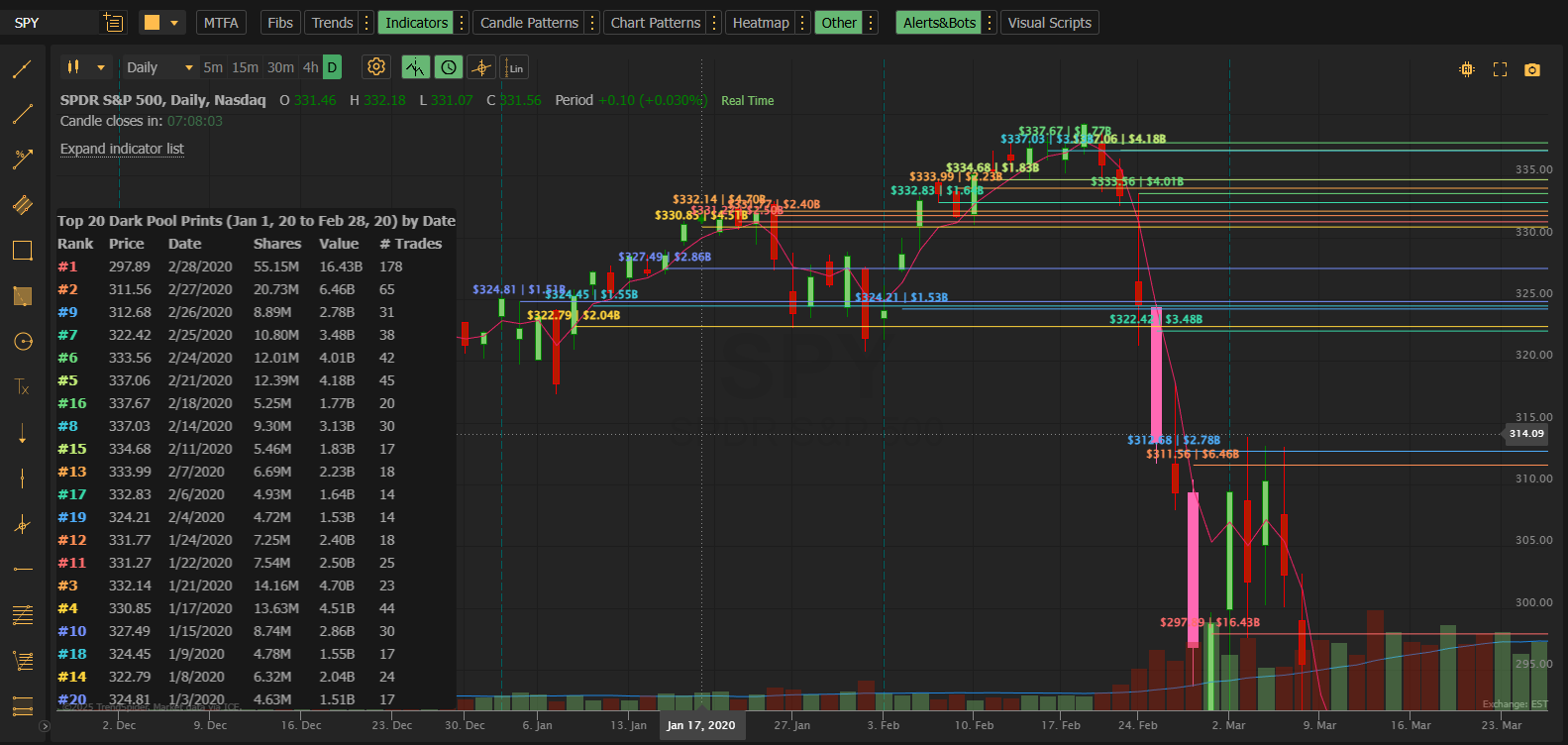
A detailed guide to every configuration option in the Moby Tick Dark Pool Levels indicator
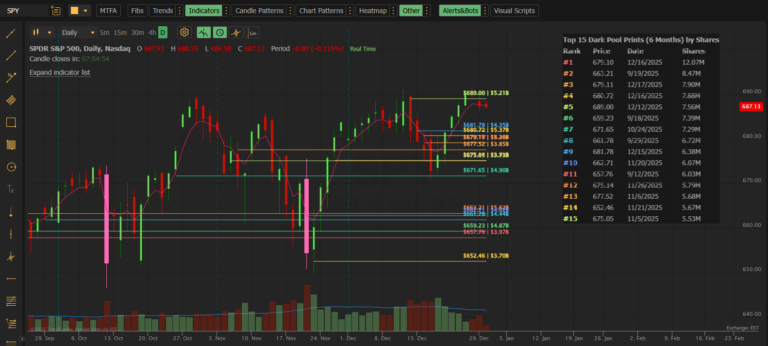
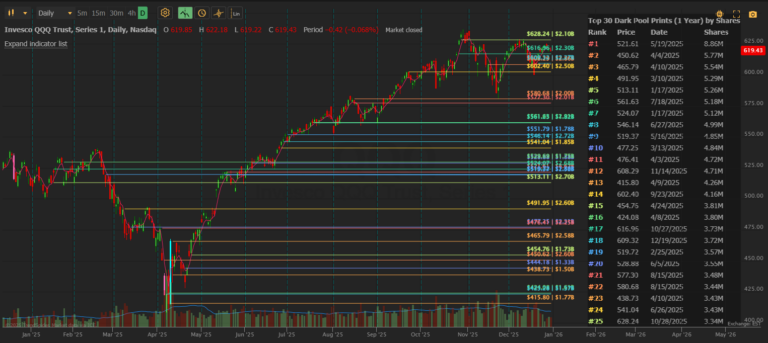
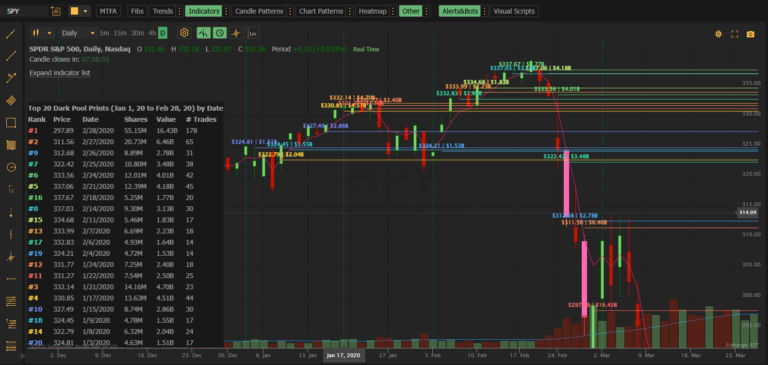
The MobyTick Dark Pool Levels indicator displays institutional dark pool transactions as horizontal price levels on your TrendSpider chart. This reference guide explains every setting so you can customize the indicator to match your trading style.
These settings control what data is fetched and displayed.
Default: 30 Days
Controls how far back to search for dark pool transactions.
| Option | Use Case |
|---|---|
| Today | Intraday scalping, seeing fresh institutional activity |
| Week | Short-term swing trades, recent positioning |
| 30 Days | Standard swing trading (recommended starting point) |
| 60 Days | Medium-term analysis |
| 90 Days | Longer swing trades, quarterly patterns |
| 6 Months | Position trading, major institutional zones |
| 1 Year | Long-term investing, historical support/resistance |
| Custom | Specific date range using the Start field |
Default: Rolling based on Date Range selection
When Date Range is set to “Custom,” enter your desired start date in YYYYMMDD format.
Example: 20250601 = June 1, 2025
Note: Data availability extends back approximately 5 years to January 2020
Default: 30
Range: 1–30
How many price levels to display on the chart. Levels are ranked by the sort criteria you select.
| Setting | Use Case |
|---|---|
| 5–10 | Clean chart, only major levels |
| 15–20 | Balanced view |
| 30 | Maximum detail, see all significant activity |
Pro Tip: Start with 10–15 to avoid chart clutter, then increase if you want more granularity.
Default: 50,000
Range: 50,000–100,000,000
Filters out smaller transactions. Only prints with share volume ≥ this value will appear.
| Setting | Use Case |
|---|---|
| 50,000 | See more activity (good for lower-volume stocks) |
| 100,000 | Standard filter |
| 500,000 | Focus on large institutional trades only |
| 1,000,000+ | Major block trades only (best for high-volume stocks like SPY, AAPL) |
Guidance by Stock Type:
Control the on-chart data table that displays dark pool transaction details.
Default: On (checked)
Toggle the table visibility. When enabled, a table appears on your chart showing details for each displayed level.
Default: Shares (Largest)
Determines the order of rows in the table AND the ranking of lines on the chart.
| Option | Sorts By |
|---|---|
| Shares (Largest) | Total share volume (highest first) — recommended |
| Price (Highest) | Price level (highest first) |
| Date (Newest) | Most recent transaction first |
Default: Standard (Rank, Price, Date, Shares)
Choose which columns appear in the table.
| Preset | Columns Displayed |
|---|---|
| Standard (Rank, Price, Date, Shares) | Rank, Price, Date, Shares |
| Minimal (Rank, Price) | Rank, Price |
| Compact (Rank, Price, Shares) | Rank, Price, Shares |
| Date Focus (Rank, Price, Date) | Rank, Price, Date |
| Value Focus (Rank, Price, Value) | Rank, Price, $ Value |
| Standard + Value | Rank, Price, Date, Shares, Value |
| No Value | Rank, Price, Date, Shares, # Trades |
| Full (All Columns) | All available columns |
| No Rank | Price, Date, Shares, Value, # Trades |
Opens TrendSpider’s standard table editor where you can adjust:
Control the text labels that appear on each horizontal price line.
Default: On (checked)
Toggle label visibility on the price level lines.
Default: Left
Where labels appear on each horizontal line.
| Option | Description |
|---|---|
| Left | Labels at the left edge of the line |
| Right | Labels at the right edge of the line |
Tip: Use “Left” if your chart has price action on the right side; use “Right” if you want labels near current price.
Default: Price + Size
What information to display in each label.
| Format | Example Output |
|---|---|
| Price Only | $685.50 |
| Size Only | 2.5M |
| Date Only | 12/15/2025 |
| Value Only | $1.7B |
| Price + Size | $685.50 | 2.5M |
| Price + Date | $685.50 | 12/15 |
| Price + Value | $685.50 | $1.7B |
| Size + Date | 2.5M | 12/15 |
| Size + Value | 2.5M | $1.7B |
| Date + Value | 12/15 | $1.7B |
| Price + Size + Date | $685.50 | 2.5M | 12/15 |
| Price + Size + Value | $685.50 | 2.5M | $1.7B |
| Price + Date + Value | $685.50 | 12/15 | $1.7B |
| Size + Date + Value | 2.5M | 12/15 | $1.7B |
| All Details | $685.50 | 2.5M | 12/15 | $1.7B |
Each of the 30 possible price levels has its own color swatch. This allows you to:
Default Color Theme: All Yellow (as shown in screenshot)
Click any color swatch to open the color picker and customize that specific line.
Dark Pool Levels by MobyTick Trading — Institutional Intelligence for Retail Traders